 Imgkeep
How to save an image as a PDF in Chrome
Short answer
Right-click the image, choose Imgkeep: Save image as, then PDF, for a one-page PDF exactly the size of the image. Without an extension, open the image in its own tab, press Ctrl+P (Cmd+P on a Mac) and set Destination to Save as PDF. The image then sits on a paper-sized page, with margins unless you turn them off.
Updated
How do I save an image as a PDF with Chrome alone?
Chrome has no "save image as PDF" option, but its print window can make one.
- Right-click the image and choose Open image in new tab.
- In that tab, press Ctrl+P (Windows) or Cmd+P (Mac).
- Set Destination to Save as PDF.
- Under More settings, set Margins to None to cut the white border.
- Click Save.
Nothing to install. The catch: the PDF is a paper-sized page (A4 or Letter), so the image sits on it with white space around it, and a big image may be shrunk to fit.
Can I use an app I already have?
Windows: Photos
- Save the image, then open it in Photos.
- Press Ctrl+P and choose Microsoft Print to PDF as the printer.
- Click Print, then choose where to save the PDF.
Mac: Preview
- Save the image, then open it in Preview.
- Choose File › Export as PDF.
How do I save an image as a PDF in one step?
An extension can build the PDF from the image as you save it, straight from the right-click menu. It runs in your browser, so pick one you can trust (how to check an image extension is safe). Here's how it works with ours.
Our extension
Imgkeep
- Add Imgkeep to Chrome from the Chrome Web Store.
- Right-click the image and choose Imgkeep: Save image as.
- Pick PDF.
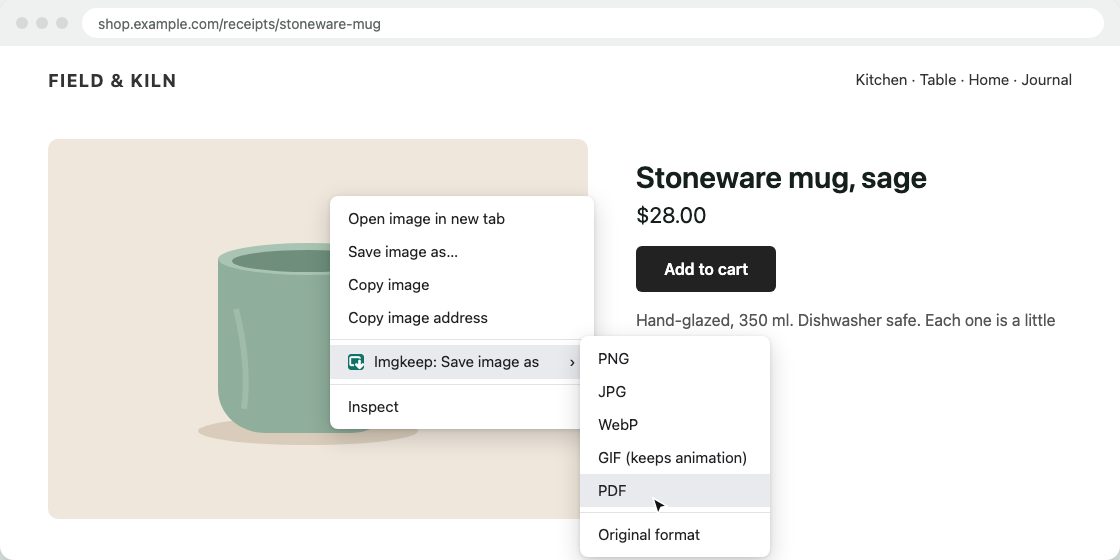
You get a one-page PDF exactly the size of the image, with no border. Photos are stored as JPEG inside, using your JPG quality setting; images with a transparent background are stored without loss and keep their transparency. It works with WebP and AVIF too, and an animation becomes its first frame. If you've set a maximum width in Options, wider images are scaled down first. Conversion happens on your computer; nothing is uploaded. Free and open source.
Add Imgkeep to Chrome — free Works in Chrome 116 and newer. Also for Microsoft Edge.What about online converters?
They work, but you upload the image to someone else's server. Think twice for receipts, IDs or anything else private.
Related guides
- Why Chrome saves images as WebP
- How to save WebP as JPG or PNG
- How to save AVIF as JPG or PNG
- Chrome saves images as JFIF? How to get JPG
- How to save an animated WebP as a GIF
- A safe alternative to Save image as Type
- When right-click won't save an image
Questions
Why is there a white border around my image in the PDF?
Print to PDF puts the image on a paper-sized page, like A4 or Letter, with margins. Set Margins to None to reduce it. For a page exactly the size of the image, use a tool that builds the PDF from the image itself.
Does the PDF lower the image quality?
It depends on the tool. Printing can rescale the image to fit the page. A PDF built from the image keeps its pixel size, though photos are usually stored as JPEG inside to keep the file small.
Can I put several images in one PDF?
Not with the one-image methods on this page. On a Mac, select several images in Preview's sidebar and print them to one PDF. On Windows, select several images in File Explorer, right-click, choose Print (on Windows 11, under Show more options) and pick Microsoft Print to PDF.